




Part ofClaude AI Features: The Complete Overview
Claude Cowork for Windows needs the latest desktop app, Virtual Machine Platform, an x64 PC, and a paid plan — here's how to enable it and fix Windows issues.
In This Article
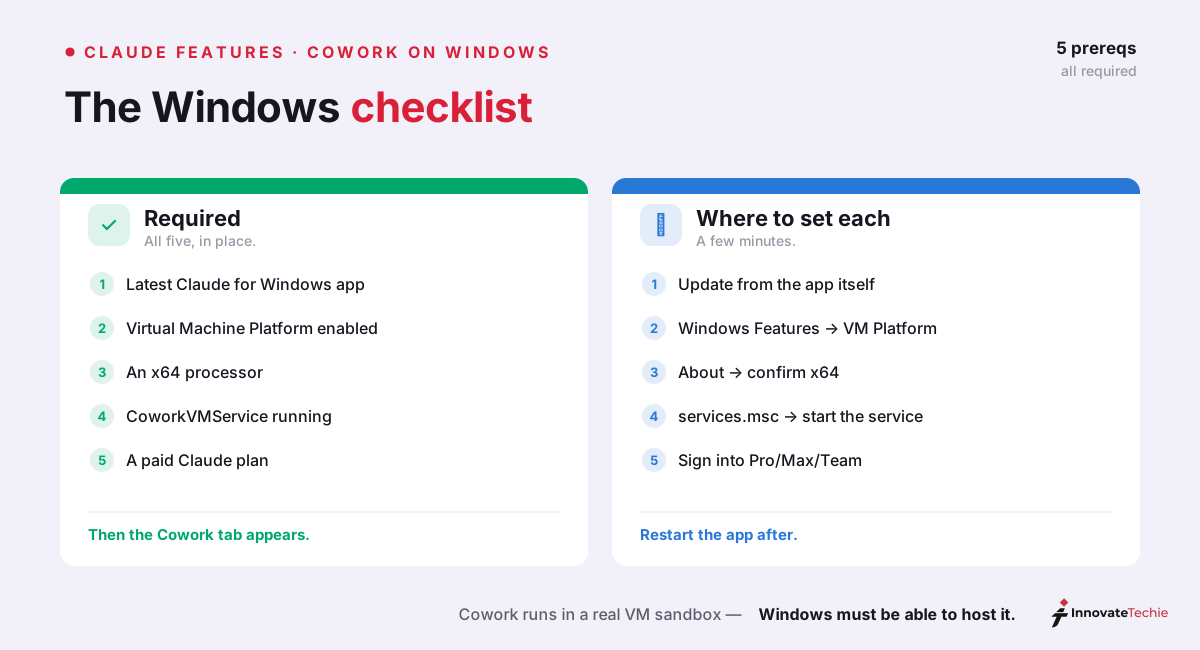
6 sectionsClaude Cowork for Windows requires the latest Claude for Windows desktop app, an x64 processor, Windows' Virtual Machine Platform feature enabled, the CoworkVMService running, and a paid Claude plan (Pro, Max, Team, or Enterprise). Cowork runs each task inside a sandboxed virtual machine, so virtualization support is mandatory — the browser and mobile apps can't run it.
We installed Cowork on three Windows machines the week it shipped: a Windows 11 Pro desktop that worked in minutes, a Windows 10 Pro laptop that needed a BIOS toggle, and a Windows 11 Home box that never cooperated. This guide is the checklist we wish we'd had for getting Claude Cowork for Windows running — every requirement, the exact enable sequence, what the sandbox virtual machine does under the hood, and the Windows-only failures that eat an afternoon. Cowork is Anthropic's agentic mode for knowledge work; What Is Claude Cowork? explains what it does, while this page is strictly the Cowork Windows setup.
What Claude Cowork for Windows requires
Cowork landed on Windows in February with full feature parity with the macOS build — plugins, file access, MCP connectors, and multi-step execution all work the same way. Windows just adds prerequisites macOS doesn't, because Cowork runs each task inside a virtual machine and Windows gates virtualization behind optional features and specific editions. Seven things have to be true — the full Claude Cowork Windows requirements — before the Cowork tab will even appear.
| Requirement | What you need | How to confirm it |
|---|---|---|
| Desktop app | The latest Claude for Windows — not claude.ai in a browser | Settings → About, compared with the download page |
| Paid plan | Pro, Max, Team, or Enterprise | Plan badge next to your email in Settings |
| Processor | x64 (Intel or AMD); ARM64 is unsupported | Settings → System → About → System type |
| Windows | A current Windows 10 or 11 build; Pro/Enterprise recommended | Settings → System → About → Edition |
| Virtual Machine Platform | Turned on in Windows features | "Turn Windows features on or off" |
| CoworkVMService | Installed and running (startup set to Automatic) | services.msc |
| Disk + network | ~2GB free for the VM image, plus a stable connection | — |
That's the complete Claude Cowork for Windows requirement list, and the plan line trips people up most. Cowork never runs on the free tier; the cheapest way in is the Claude Pro plan at $20/month, while Claude Max at $100–$200/month buys the higher usage limits that long agentic runs burn through fast. Sign in with the exact email that carries the subscription — desktop apps happily stay logged in under an old free account, and from your seat that looks identical to a broken install. If every box here is ticked and the tab still isn't there, our Claude Desktop Cowork tab missing guide ranks the remaining causes.
The sandbox VM behind Cowork on Windows
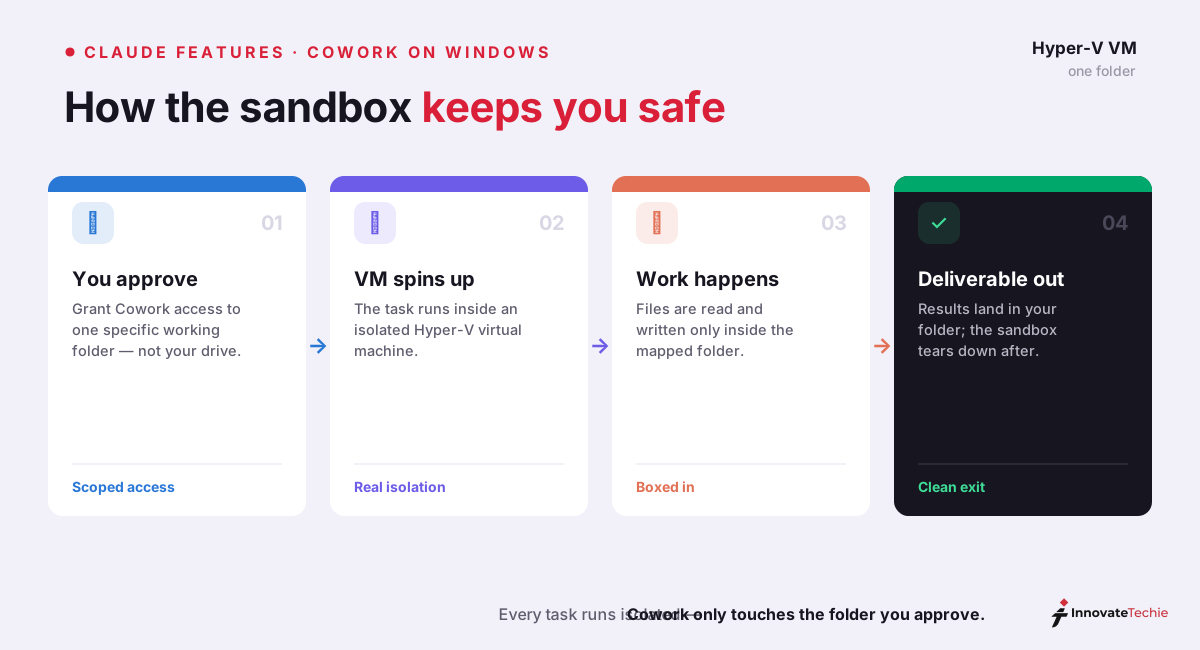
The sandbox is the single most important thing to understand about Claude Cowork for Windows, because it explains almost every requirement above and every failure below. Cowork does not act directly on your PC. Each task runs inside a lightweight, sandboxed virtual machine; on Windows that VM runs on Microsoft's Hyper-V, the same virtualization layer that powers WSL2. Claude reads, edits, and creates files inside that VM, mapped only to the working folder you approve — so a misfired step can't wander across your whole drive.
Two consequences fall out of that design, and together they cause most Windows-specific trouble:
- Virtualization has to be on. If Virtual Machine Platform is disabled, or CPU virtualization (Intel VT-x or AMD SVM) is switched off in your BIOS/UEFI, the VM can't start — and the Cowork tab may not even draw.
- The Windows edition matters. Home SKUs ship without the full Hyper-V service stack Cowork leans on, which is why a Windows 11 Home laptop can pass every other check and still fail.
| Configuration | Cowork support | Note |
|---|---|---|
| Windows 11 Pro / Enterprise, x64 | ✅ Fully supported | The reliable path |
| Windows 10 Pro, x64 (current build) | ✅ Supported | Keep the desktop app updated |
| Windows Home (10 or 11) | ⚠️ Unreliable | Lacks the full Hyper-V stack; Virtual Machine Platform sometimes helps on 11 |
| ARM64 (Snapdragon) | ❌ Unsupported | Cowork's Windows VM is x64-only |
How to enable Claude Cowork for Windows
Enabling it is a short sequence, and doing the steps in this order avoids the loop where the tab never appears because a prerequisite was missing:
- Turn on Virtual Machine Platform. Open "Turn Windows features on or off," tick Virtual Machine Platform, and restart the PC. On some machines you'll also need to enable virtualization (VT-x or AMD SVM) in the BIOS first.
- Install the latest desktop app. Download the Windows installer from claude.com/download, run it, and launch Claude from the Start menu. Cowork ships inside Claude Desktop — there is no separate Cowork download to hunt for.
- Sign in with your paid account. Use the exact email that holds your Pro, Max, Team, or Enterprise plan, not a second free login.
- Open the Cowork tab. In the mode selector at the top of the window, click Cowork, next to Chat. Anthropic's getting-started guide for Claude Cowork walks the same path.
- Let the VM image download. The first launch pulls a virtual machine image of roughly 2GB before your first task can run, so budget the disk space and a stable connection.
- Set a working folder and approve permissions. Point Cowork at one folder — Desktop or Documents is a sensible start — rather than your whole drive.
- Describe the outcome and run. Tell Cowork the deliverable you want, not each individual step, and let it work.
That completes the Cowork Windows setup. There's no hidden "enable Cowork" switch buried in Claude Desktop's settings; once the version, plan, platform, and virtualization checks all pass, Claude Cowork for Windows draws its tab on the next launch.
Common Claude Cowork for Windows problems (and fixes)
Most Cowork failures on Windows trace back to the VM, not the app itself, and they show up as a handful of recognizable symptoms. We hit four of these six across our three test machines.
| Symptom | Likely cause | Fix |
|---|---|---|
| No Cowork tab | Outdated app, free plan, or virtualization off | Update the app, confirm a paid plan, enable Virtual Machine Platform |
| "Virtualization is not enabled" | VT-x/SVM off in BIOS, or a Home edition | Enable virtualization in BIOS; move to a Pro/Enterprise x64 machine |
| Tab shows, "VM service not running" | CoworkVMService stopped | services.msc → start CoworkVMService, set startup to Automatic |
| "Can't reach the Claude API from Claude's workspace" | Sandbox network conflict (VPN/Docker on 172.16.0.0/24) | Quit fully, free that subnet, restart the service |
| Capable x64 PC flagged "unsupported" | Platform-detection bug in an old build | Update to the current release |
| First task stalls at setup | ~2GB VM image still downloading | Wait for the download; retry on a stable connection |
The network message is the most Windows-specific of the lot, so it earns a closer look. Cowork's virtual machine needs its own private network and commonly claims the 172.16.0.0/24 address range. If a corporate VPN or a Docker bridge already occupies that subnet, the sandbox can't reach the Claude API even though your host has flawless internet — the error reads like an outage, but it's a local collision. Quit Claude fully, free that subnet or disconnect the VPN, then restart CoworkVMService. The service itself is the sneakiest offender: it installs with a Manual startup type, so it quietly stays dead after a reboot or a long sleep, taking the feature down with it until you set it to Automatic.
Where Cowork on Windows goes from here
Once those boxes are ticked, Claude Cowork for Windows behaves exactly like the macOS build — same tasks, same plugins, same MCP connectors, no asterisks. Claude Desktop Cowork on Windows is one piece of a wider shift in what Anthropic's apps do on their own; Claude AI Features maps the rest. And if your mode selector also shows a Code tab beside Chat and Cowork, that's Claude Code's desktop mode — a different tool aimed at developers, covered in Claude Code desktop.
For example, on our own Windows box the Cowork tab stayed hidden until we enabled Virtual Machine Platform and restarted — the paid plan alone was not enough.
Claude pricing at a glance
| Plan | Price |
|---|---|
| Free | $0 |
| Pro | $20 / month |
| Max | from $100 / month |
| API | Pay per token |
For the full breakdown of every plan, see our how much Claude costs guide.
Frequently Asked Questions

Written by
InnovateTechie
Writing about Claude and the Anthropic toolkit — models, Claude Code, pricing, features, and fixes, in clear, practical, hands-on guides tested by daily use.
View all posts →