




Part ofWhat Is Claude Code? The Complete Guide
The Claude Code desktop app puts the agent in a visual cockpit: setup on Windows and macOS, the Code tab, and when to pick it over the CLI.
In This Article
9 sectionsThe Claude Code desktop app is a graphical version of Anthropic's coding agent that runs on Windows and macOS. Install it from claude.com/download, sign in, and click the Code tab to point Claude at a local folder. It needs a paid Pro, Max, Team, or Enterprise plan — no terminal required.
We build and maintain this site with Claude Code every day, and the desktop build is where we now do most of our review work. Below: what the app actually is, how to install it on both platforms, signing in, the agent panel, when to reach for desktop over the terminal, and the one Windows Git snag that trips up nearly everyone.
What is the Claude Code desktop app?
The Claude Code desktop app packages Anthropic's agentic coding tool — the same engine that powers the terminal CLI — inside a native window with a sidebar, visual diffs, an integrated terminal, and live app previews. Nothing about the model changes; what changes is that you drive it by clicking instead of typing commands.
The app has three tabs, and only one of them is Claude Code proper:
- Chat — general conversation with no file access, like claude.ai.
- Cowork — an autonomous background agent that works in a cloud VM; see What Is Claude Cowork? for how that surface works.
- Code — the interactive coding assistant with direct access to your local files. This is the tab this guide is about.
Because the desktop app bundles Claude Code, you don't install Node.js or the CLI separately to use the Code tab. If you're brand new to the tool, start with our pillar, What Is Claude Code?, then come back for the desktop-specific setup.
Claude Code desktop vs terminal vs web: which environment?
Claude Code runs in several places, and the Claude Code desktop app is the middle ground between the scriptable terminal CLI and the fully hosted web version. Here is how the environments compare:
| Environment | Interface | Best for | What it needs |
|---|---|---|---|
| Claude Code desktop app | Native window, sidebar, diffs | Visual review, parallel sessions | Pro / Max / Team / Enterprise plan |
| Terminal CLI | Command line | Scripting, automation, headless runs | Paid plan or API credits |
| Claude Code on the web | Browser, cloud VMs | Work away from your machine | Paid plan |
| IDE extension (VS Code / JetBrains) | Inline in your editor | Edits while you stay in your editor | Paid plan + CLI |
The short version: the CLI is terminal-native and built for flags, piping, and headless automation; Claude Code for desktop is a visual interface with diffs, panes, and parallel sessions; the web version runs entirely on Anthropic's cloud so work continues after you close the laptop. For everyday Claude desktop coding, the Code tab is home base, and most teams end up using two of the three.
How to download and install (Windows and macOS)
Installing the Claude Code desktop app takes a couple of minutes on either platform. Anthropic's desktop quickstart has the canonical download buttons; the Claude Code app download is a single installer that includes the Chat, Cowork, and Code tabs. Here is the summary by operating system:
| OS | Build | Notes |
|---|---|---|
| macOS | Universal .dmg | Intel and Apple Silicon; Git usually preinstalled |
| Windows | x64 (or ARM64) .exe setup | Requires Git for Windows for local sessions |
| Linux (beta) | apt or .deb | Ubuntu and Debian; computer use not yet supported |
The steps are the same idea everywhere:
- Download the installer for your platform from claude.com/download.
- Run it — the
.dmgon macOS, the.exesetup on Windows. - Launch Claude from the Applications folder (macOS) or the Start menu (Windows).
- Sign in with your Anthropic account.
On Windows, install Git for Windows before your first local session — more on that below. Macs ship with Git, so there's nothing extra to do.
Signing in and opening the Code tab
After install, launch Claude, sign in with your Anthropic account, and click the Code tab at the top center. Two things can happen:
- If clicking Code prompts you to upgrade, you're on the free plan. Claude Code needs a paid subscription; upgrade first and the tab unlocks.
- If it asks you to sign in online, complete that, then restart the app.
This is where the "is it free" question gets answered in practice: the Code tab is the paid surface. Pro at $20/month is the entry point, and Max at $100 or $200/month, Team, and Enterprise all include it too — you can compare tiers on Anthropic's pricing page. API credits work as an alternative if you'd rather pay per token.
Starting your first session and using the agent panel
With the Code tab open, you choose where Claude runs and what it works on:
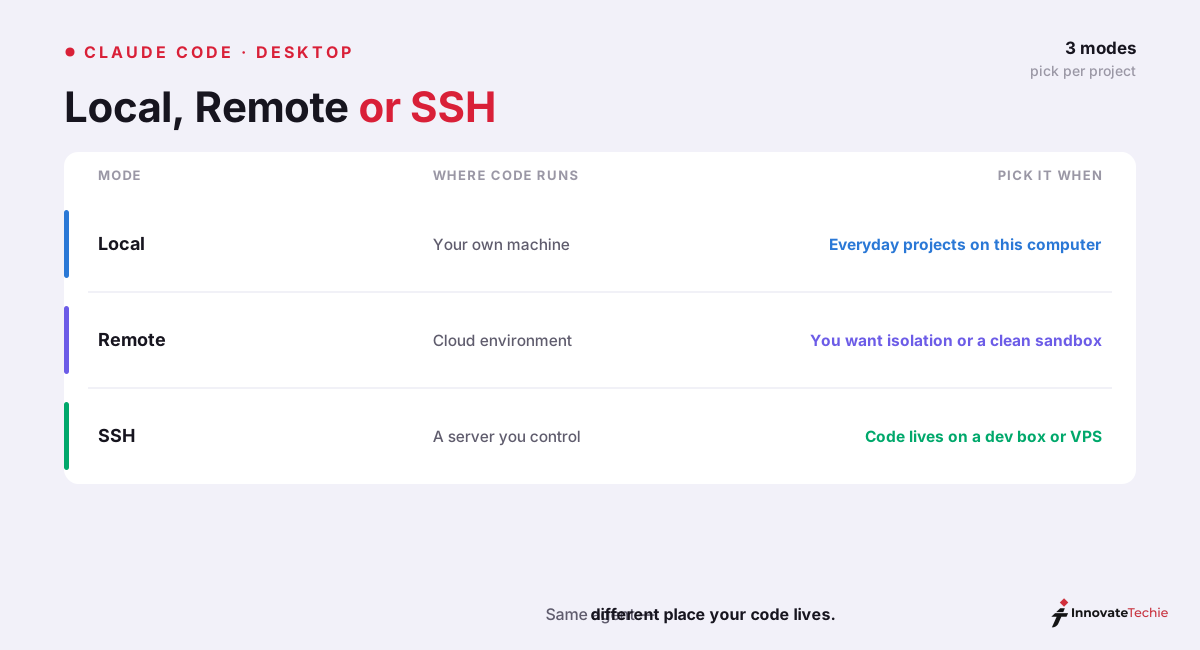
- Choose an environment. Select Local to run on your machine against your real files. Remote runs on Anthropic's cloud and survives closing the app; SSH connects to your own server or dev container.
- Select folder. Click Select folder and point Claude at your project directory. Start small — a repo you know well.
- Pick a model. Use the dropdown next to the send button. Opus 4.8 for the hardest reasoning, Sonnet 5 for speed and cost; our Claude models explained guide covers the trade-offs.
- Tell Claude what to do. Type a task like "find and fix a TODO" or "add tests for the main function."
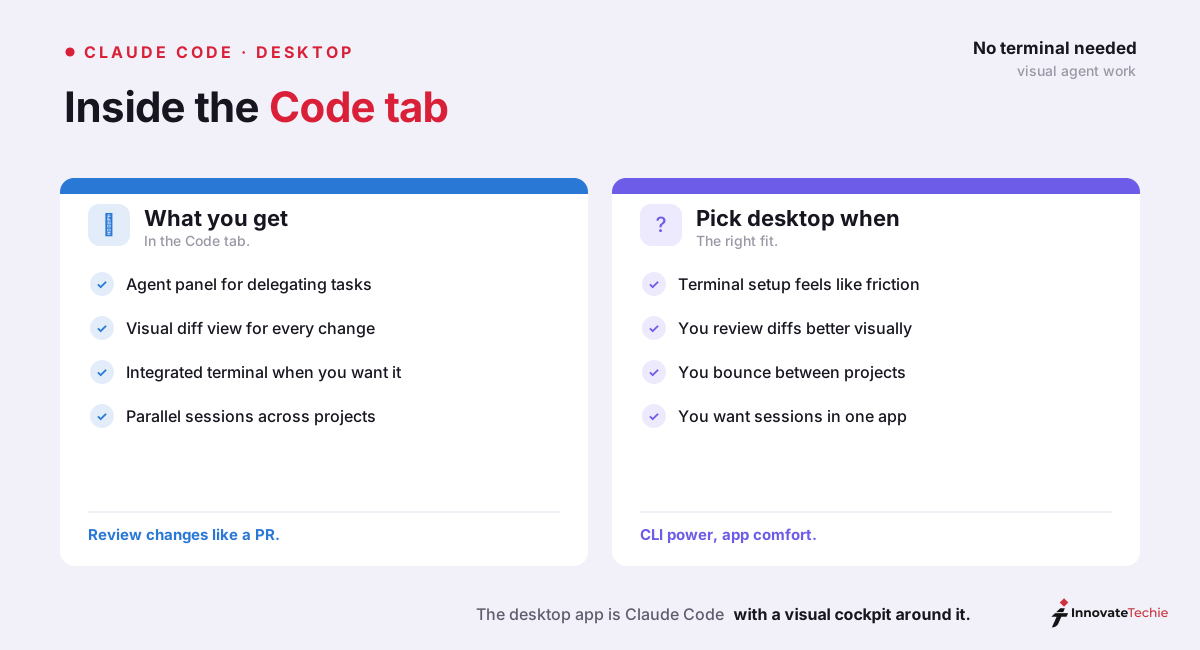
The agent panel is where the desktop build earns its keep. By default it runs in Ask permissions mode: Claude proposes each change, shows a diff view with Accept and Reject buttons, and touches nothing until you approve. Switch to Auto accept edits for faster iteration, or Plan mode to have Claude map a refactor without editing files. When Claude edits, a +12 -1 indicator appears — click it to open the diff, comment on specific lines, and Claude revises from your notes. Drag the chat, diff, terminal, file, and preview panes into whatever layout suits you.
Running parallel sessions with Git worktree isolation
One reason to prefer the Claude Code desktop app over a single terminal window is parallel work. Click + New session in the sidebar (Ctrl+N on Windows, Cmd+N on macOS) and each session keeps its own context and changes. For Git repositories, every session runs in its own isolated Git worktree stored under .claude/worktrees/, so edits in one session never leak into another until you commit.
In practice that means you can have Claude refactoring one project while it writes tests in another, side by side in the sidebar. You can also send a long-running task to the cloud so it keeps working after you close the app, or continue a session in your IDE if it outgrows the desktop window.
When to use desktop vs terminal vs the IDE extension
Desktop and the CLI run the same engine and share configuration — CLAUDE.md files, MCP servers, hooks, skills, and settings all carry over, and you can run both on the same project at once. So the choice is about workflow, not capability. Our rule:
| Reach for | When |
|---|---|
| Desktop app | You want visual diffs, parallel sessions in one window, or a live app preview |
| Terminal CLI | You need scripting, headless --print, CI pipelines, or agent teams |
| IDE extension | You want inline suggestions and edits without leaving VS Code or JetBrains |
| Web | You're away from your machine and want cloud sessions that persist |
One thing the desktop app deliberately does not do is inline autocomplete-style suggestions — that lives in the IDE extension. And scripting flags like --print are terminal-only. If you want the flag-by-flag reference for the command line, our Claude Code CLI documentation guide covers that workflow; and if you're weighing an all-in-one editor instead of the tab-and-panel model, Cursor vs Claude Code lays out the real trade-off.
Fixing the "Git is required" error on Windows
The most common Claude Code desktop setup snag on Windows is a "Git is required" message when you open the Code tab. The app needs Git for Windows to start local sessions and can sometimes fail to locate bash.exe even after you install it.
The fix, in order:
- Install Git for Windows from git-scm.com.
- If the error persists, set the
CLAUDE_CODE_GIT_BASH_PATHenvironment variable to the full path ofbash.exe(typicallyC:\Program Files\Git\bin\bash.exe), or add it underenvin~/.claude/settings.json. - Fully restart Windows — the tray app caches old environment variables, so a plain app relaunch often isn't enough.
Without Git Bash, Claude falls back to PowerShell, but local session isolation through worktrees needs Git present. This is a Windows-only step; on macOS the bundled Git handles it.
Claude pricing at a glance
| Plan | Price |
|---|---|
| Free | $0 |
| Pro | $20 / month |
| Max | from $100 / month |
| API | Pay per token |
For the full breakdown of every plan, see our how much Claude costs guide.
Frequently Asked Questions

Written by
InnovateTechie
Writing about Claude and the Anthropic toolkit — models, Claude Code, pricing, features, and fixes, in clear, practical, hands-on guides tested by daily use.
View all posts →