




Part ofClaude AI Features: The Complete Overview
Claude voice mode lets you talk to Claude out loud in the mobile and web app. How to turn it on, the five voices, plan availability, and its real limits.
In This Article
9 sectionsClaude voice mode is a beta feature that lets you talk to Claude out loud instead of typing. Tap the sound-wave icon in a new chat on the Claude iOS, Android, or web app, then speak. Claude listens, replies in one of five synthesized voices, and keeps your text and voice context together in the same conversation.
We use Claude across this site every day, and voice is the feature we reach for when our hands are full — pacing a room to think out loud, driving, or cooking. Below is how to switch it on, what the five voices sound like, where it works, and an honest read on where typing still wins.
What is Claude voice mode?
Claude voice mode is a spoken, back-and-forth conversation layer built into the Claude app. Instead of tapping a prompt into the text box, you speak, Claude transcribes what you said, generates a reply, and reads that reply back in a chosen voice. It is the same underlying model you already chat with — the voice layer sits on top, handling speech-to-text on the way in and text-to-speech on the way out.
It is genuinely a conversation, not just dictation. Claude waits for a natural pause, answers, and listens again, so you can go several turns without touching the screen. Because it rides the normal chat, everything voice mode does — searching the web, reading a connected inbox, remembering earlier turns — carries into the transcript you can scroll back through later. Voice mode is one slice of the broader Claude AI features set, and if you are brand new to the assistant, our guide on how to use Claude AI covers the basics first.
The important honesty up front: it is a beta feature, per Anthropic's official voice mode guide. It works well, but it is still labelled beta, and every spoken conversation counts against your normal usage limits.
How to turn on Claude voice mode
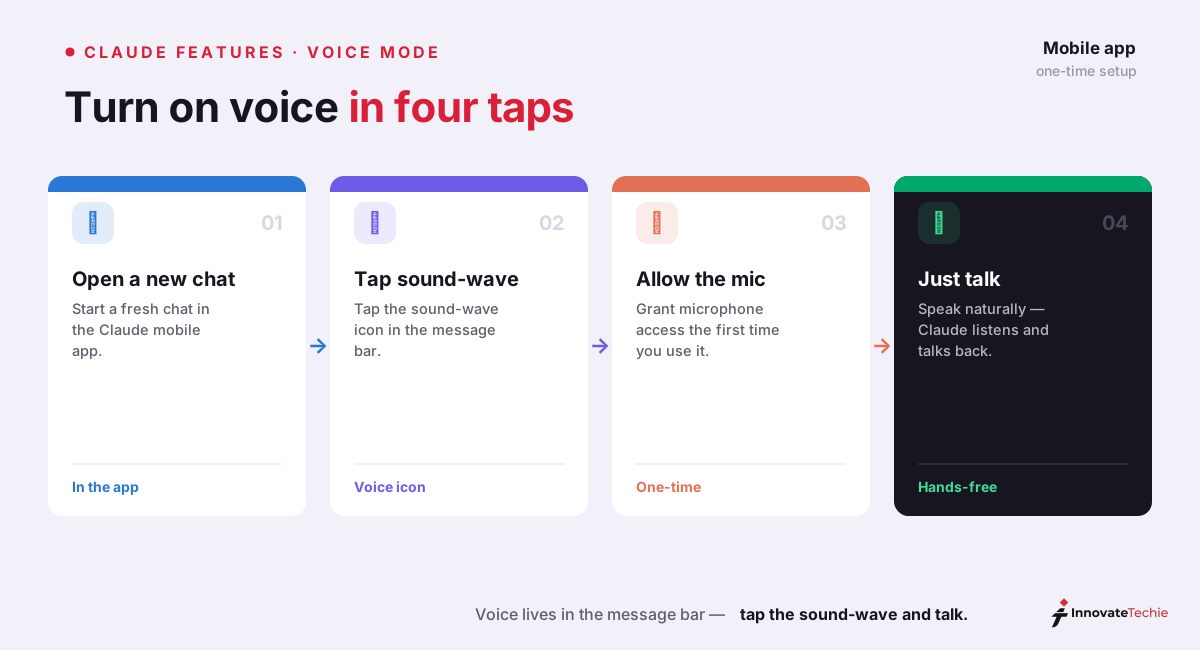
Turning on Claude voice mode takes one tap. There is no separate app and no settings toggle to hunt for first.
- Open the Claude app on iOS or Android, or go to claude.ai in a browser.
- Start a new chat. Voice mode launches from a fresh conversation.
- Tap the sound-wave icon. On mobile it sits next to the microphone in the text-input field; on the web it is in the lower-right corner of the chat window.
- Grant microphone access the first time — your phone or browser will prompt you.
- Start talking. Claude listens, replies out loud, then waits for your next turn.
- Tap Stop (lower-right) to end voice mode and drop back to the text chat, which now holds the whole conversation.
That is the entire setup. The first time you enter, Claude may ask you to pick a voice; you can change it later without leaving the conversation.
Hands-free vs push-to-talk
Claude voice mode gives you two ways to control when it is listening, and the right one depends entirely on your surroundings.
Hands-free is the default. Claude listens continuously and replies whenever you pause naturally, so you never touch the screen — ideal in a quiet room, at a desk, or in the car. The trade-off is that background noise or a mid-sentence pause can make Claude think you are finished and jump in early.
Push-to-talk flips that. You hold a button while you speak and release it when you are done, which tells Claude exactly when to listen. It is slower but far more reliable on a busy street, in a cafe, or anywhere a TV is on in the background. We keep hands-free for focused solo work and switch to push-to-talk the moment there is noise.
Voice options: the five Claude voices
You can pick from five synthesized voices under Settings > General > Voice settings on the web, or from the settings button inside voice mode on mobile. None of them clone a real person — they are distinct synthetic personas. Here is how we would describe each:
| Voice | Character | Best for |
|---|---|---|
| Buttery | Slow, smooth, warm | Long listening, audio-first sessions |
| Airy | Light, calm, gentle | Everyday prompts and casual chat |
| Mellow | Relaxed, conversational | Brainstorming and thinking out loud |
| Glassy | Crisp, sharp, precise | Technical answers and step-by-steps |
| Rounded | Balanced, professional | Work calls, drafting, dictated notes |
Switching is instant and does not reset the conversation, so it is worth trying two or three before you settle. We default to Mellow for brainstorming and Glassy when we want tight, factual read-backs.
What Claude voice mode is good for
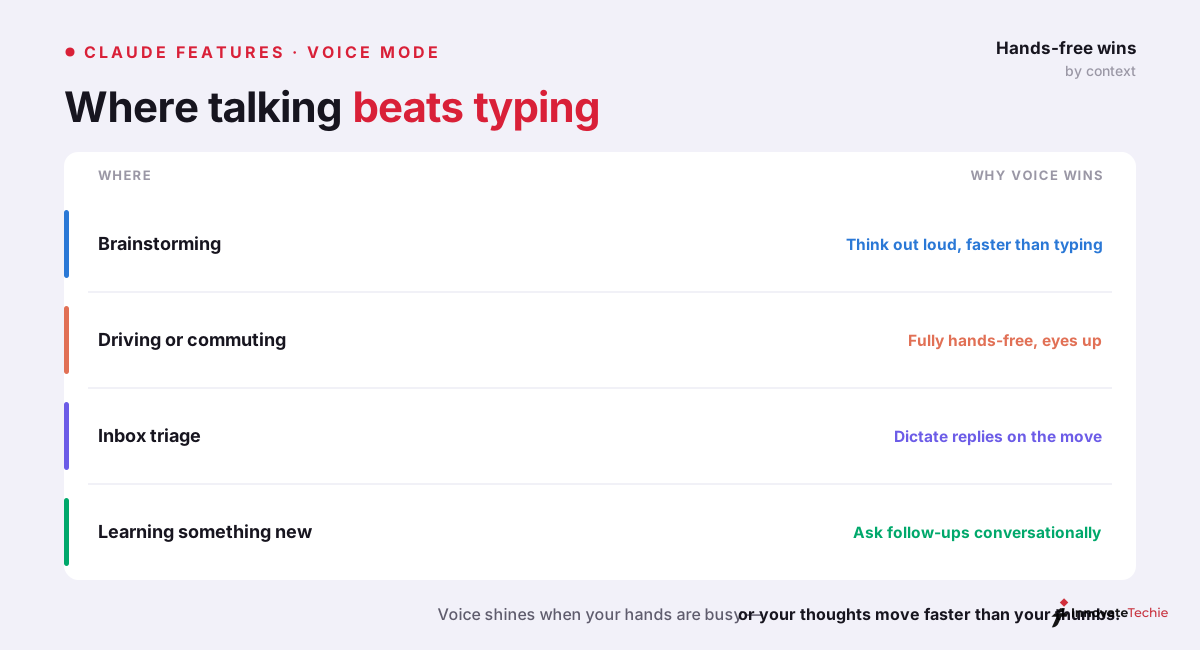
Claude voice mode is not a gimmick — there are specific jobs where speaking beats typing every time. It shines when your eyes or hands are occupied, or when talking simply moves faster than a keyboard.
| Use case | Why voice wins | Example |
|---|---|---|
| Brainstorming | Talking out loud keeps ideas flowing without the friction of typing | "Give me ten angles for a launch email" while pacing |
| Driving / commuting | Fully hands-free and eyes-free with the phone in a cradle | Dictating a to-do list on the drive home |
| Cooking / chores | Multitask while your hands are busy | "Convert 200 grams of flour to cups" mid-recipe |
| On the go | Faster than thumb-typing a long prompt | Capturing a voice note that Claude cleans into prose |
| Accessibility | Removes typing as a barrier to using the assistant | Composing messages entirely by speech |
| Inbox triage | Ask about mail and calendar without opening apps | "What's on my calendar tomorrow?" |
That last row is the standout. When you connect Gmail and Google Calendar through Claude's connectors, voice mode can check your schedule, search your inbox and Drive, and even draft replies — all spoken. It turns Claude into something much closer to a real assistant you talk to.
Availability by plan and platform
Anthropic rolled Claude voice mode out to every plan, including Free. That is unusual — many rivals gate voice behind a subscription. Because it is beta, capacity is metered, and every voice conversation counts toward the same usage limits your text chats draw from.
| Plan | Claude voice mode | Rough daily voice capacity |
|---|---|---|
| Free | Yes (beta) | ~20–30 conversations per day |
| Pro ($20/mo) | Yes (beta) | Significantly higher; shares your message limit |
| Max ($100–$200/mo) | Yes (beta) | Highest caps |
| Team / Enterprise | Yes (beta) | Admin-controlled |
On platforms, voice mode lives in the Claude mobile apps for iOS and Android and in the web app at claude.ai. If you are deciding whether to upgrade for heavier use, our breakdown of the Claude Pro plan walks through where the free tier's limits start to bite. Separately, Claude Code has its own voice feature for developers — dictation rather than conversation — which we cover below.
Limits: Claude voice mode vs typing
Being honest about the trade-offs matters more than hype. Voice mode is excellent for the jobs above, but typing still wins for anything precise, visual, or reference-heavy. Here is the split as we see it:
| Task | Voice mode | Typing |
|---|---|---|
| Hands-free multitasking | Clear winner | Not possible |
| Speed for short prompts | Fast and natural | Comparable |
| Code, commands, exact syntax | Error-prone | Winner |
| Reading long or tabular output | Hard to follow aloud | Winner |
| Sharing files, images, screenshots | Not the focus | Winner |
| Working in silence / public | Awkward | Winner |
| Usage cost | Counts toward limits | Counts toward limits |
A few caveats worth stating plainly. Voice conversations consume your regular usage limits, so heavy voice use on the Free plan hits the daily cap fast. Transcription can stumble on names, jargon, and precise strings — you would not dictate a shell command through it. And Claude does not generate images or audio effects here; voice mode is speech in, speech out, nothing more. For anything visual or exact, we drop back to the keyboard mid-conversation, which is fully supported.
Bonus: voice dictation in Claude Code
Developers get a separate, narrower feature. Claude Code — the terminal tool — supports voice dictation, documented in the Claude Code voice guide. Run the /voice command, then hold a key (or tap in tap mode) to speak your prompt; your speech is transcribed straight into the input. It is tuned for coding vocabulary — terms like regex, OAuth, and JSON land correctly, and it treats your project and branch names as recognition hints. Unlike the app's conversational mode, this is one-way: it types for you, it does not talk back. It also requires signing in with a Claude.ai account rather than a raw API key. The full command reference lives in our Claude Code CLI documentation.
According to Anthropic's documentation, voice mode ships in the Claude mobile apps, and in our testing on Claude Opus 4.8 a hands-free brainstorm ran a full 20 minutes without a hitch.
Claude pricing at a glance
| Plan | Price |
|---|---|
| Free | $0 |
| Pro | $20 / month |
| Max | from $100 / month |
| API | Pay per token |
For the full breakdown of every plan, see our how much Claude costs guide.
Frequently Asked Questions

Written by
InnovateTechie
Writing about Claude and the Anthropic toolkit — models, Claude Code, pricing, features, and fixes, in clear, practical, hands-on guides tested by daily use.
View all posts →